OpenClaw Beginner Guide: How to Set Up Your First AI Agent in 30 Minutes
Ready to try OpenClaw? This beginner guide covers installation, Telegram setup, AI model choice, and your first automation, with security tips for business use.
Quick Install (Skip the Tutorial)
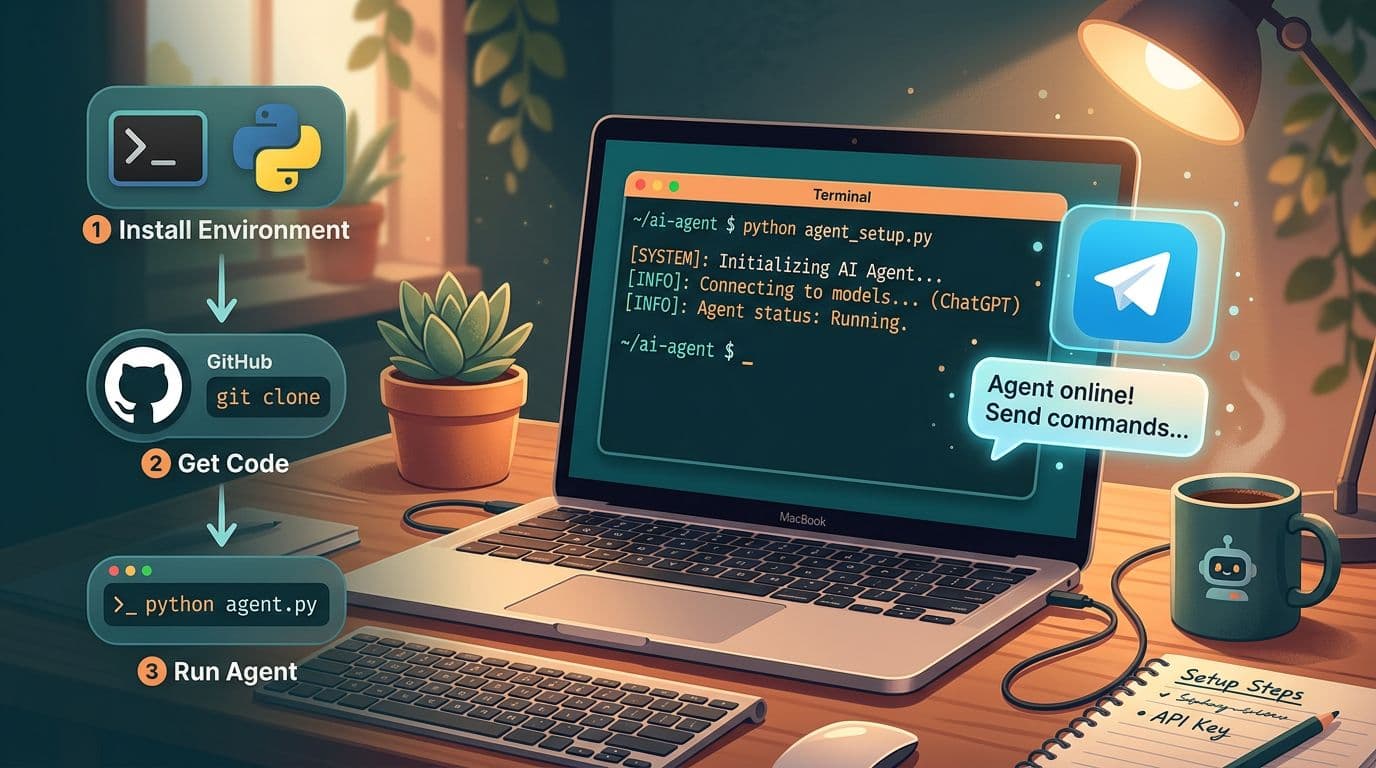
Already know your way around Node.js and a terminal? Use the current install command for OpenClaw. Paste it into your terminal and the CLI wizard handles the rest:
npx openclaw@latest initThis downloads the latest stable release, creates the config directory, and prompts for your Telegram bot token + LLM API key. Total time: about 5 minutes. If you want the full step-by-step with screenshots, keep reading.
Before You Start: What You Need
OpenClaw runs as a Node.js service on your own computer. Before setup, make sure you have the basics ready. You do not need a gaming PC. A regular laptop or Mac Mini will do, and many users run OpenClaw on Raspberry Pi devices and old office machines.
- A computer running macOS, Windows, or Linux (always-on is ideal, but not required for testing).
- Node.js version 22 or higher installed.
- A Telegram account (the easiest messaging platform to start with).
- An API key from an LLM provider: OpenAI (GPT-5), Anthropic (Claude), Google (Gemini), or a local model via Ollama.
- Basic comfort with the command line because you will need to run a few terminal commands.
Step 1: Install OpenClaw
OpenClaw installation is straightforward. Open your terminal and run the following commands. The installer will create a configuration directory and download the latest stable release. On Windows, use PowerShell or Git Bash.
Run: npx openclaw@latest init. This initialises a new OpenClaw instance in your current directory. The CLI wizard guides you through the basic configuration, including your preferred language model and messaging platform. Choose Telegram first because it has the best integration and is the easiest to debug.
Step 2: Create a Telegram Bot
OpenClaw connects to Telegram through the Bot API. Creating a bot takes about two minutes:
- Open Telegram and search for @BotFather.
- Send the command /newbot and follow the prompts to name your bot.
- BotFather will give you an API token. Copy it. It looks like: 123456789:ABCdefGHIjklMNOpqrSTUvwxYZ.
- Paste the token into your OpenClaw configuration when prompted, or add it to your .env file as TELEGRAM_BOT_TOKEN.
- Send a message to your new bot in Telegram to activate it.
Step 3: Connect Your AI Model
OpenClaw needs a language model to understand your messages and decide what actions to take. You have several options, each with different trade-offs:
- OpenAI GPT-5.4: best overall intelligence, cloud-based, costs approximately US$0.01-0.03 per interaction. Set OPENAI_API_KEY in your .env file.
- Anthropic Claude Sonnet 5: strong for detailed analysis and writing tasks, similar pricing to OpenAI. Set ANTHROPIC_API_KEY in your .env file.
- Google Gemini 2.5 Flash: good balance of speed and capability, generous free tier. Set GOOGLE_API_KEY in your .env file.
- Ollama (local models): free and private, runs on your machine. Best for privacy-sensitive work, but requires a decent GPU for fast responses.
For your first setup, we recommend starting with a cloud model (OpenAI or Anthropic) to get the best experience. You can always switch to a local model later. The cost for casual use is typically under RM5 per month.
Step 4: Start OpenClaw and Send Your First Message
With Telegram and your AI model configured, start OpenClaw by running: npx openclaw start in your terminal. You should see a log message confirming the Telegram connection is active. Now open Telegram, find your bot, and send a simple message like "What can you do?" OpenClaw will respond through the bot with a summary of its capabilities.
Try a few practical commands to see it in action: "What is the weather in Kuching?" or "Summarise the top news headlines today." These use OpenClaw's built-in web browsing skill to fetch real-time information and respond directly in your Telegram chat.
Step 5: Install Your First Skills
Skills are plugins that give OpenClaw new abilities. The default installation includes basic web browsing, file management, and conversation memory. To add more capabilities, use the skill installer:
- Email: openclaw skill add email connects to Gmail or Outlook for sending and reading emails.
- Calendar: openclaw skill add calendar manages Google Calendar or Outlook events.
- Web Scraping: openclaw skill add scraper extracts structured data from websites.
- File Manager: openclaw skill add files creates, edits, and organises documents.
- Cron Jobs: openclaw skill add cron schedules recurring tasks that run automatically.
Important: Only install skills from the official OpenClaw registry or trusted sources. A security audit found that third-party skills can execute code with full system access. Review what permissions each skill requests before installing it.
Step 6: Automate Your First Task
For a first test, send this message to your Telegram bot: "Every weekday at 8am, check the Ringgit to USD exchange rate and send me a summary." OpenClaw will set up a cron job that runs daily, fetches the exchange rate from the web, and messages you the result before your workday starts.
This single automation replaces a manual daily routine that takes 2-3 minutes each time, saving roughly 10 hours per year. Add more small automations, such as morning news briefings, invoice reminders, social media monitoring, and meeting prep notes, and the time savings become easier to see.
Security Best Practices for Business Use
If you use OpenClaw for anything beyond personal experimentation, follow these security guidelines. Security researchers and the OpenClaw team recommend treating your agent like a new employee: give it only the access it needs.
- Create separate service accounts for email, calendar, and other integrations. Never use your personal credentials.
- Run OpenClaw in a sandboxed environment such as a dedicated virtual machine or container, not your main workstation.
- Audit every skill before installing. Check the source code, review permissions, and only use skills from the official registry.
- Enable logging to track what OpenClaw does. Review logs weekly for unexpected actions.
- Keep OpenClaw updated. Security patches are released often, and the project had 512 vulnerabilities identified in its first audit.
- Do not give OpenClaw access to financial systems, banking, or highly sensitive customer data without professional security review.
Common Beginner Mistakes to Avoid
After helping several clients explore OpenClaw, we have seen the same mistakes repeated:
- Giving the agent your personal email and calendar access instead of creating dedicated service accounts.
- Installing unverified third-party skills that request excessive permissions.
- Running OpenClaw on a machine with access to production databases or financial systems.
- Not monitoring the agent's actions. It can send emails and execute commands autonomously, so you need oversight.
- Starting with complex multi-step workflows instead of mastering simple single-task automations first.
When to Move Past OpenClaw
OpenClaw is a strong way to learn what an agent can do, and it can run small personal automations for a long time. The line is accountability. When the task touches customer data, money, or a process other people depend on, the business needs one agent scoped to one named job, with defined permissions, logging, and a person responsible for it. That is a build, not an install: AI agent development covers that scoping. And when the documents cannot leave the building at all, a local LLM deployment keeps the model inside your own servers.
What to Do Next
Once you are comfortable with basic OpenClaw operation, connect more messaging platforms so you can interact via WhatsApp or Slack. Build custom skills for your business processes. Set up memory and context so OpenClaw remembers your preferences, clients, and ongoing projects. Use the OpenClaw community on GitHub and Discord for skill sharing and troubleshooting.
Businesses that want to deploy OpenClaw at scale need proper security, custom integrations, and reliable operations. An experienced IT partner can save weeks of trial and error and avoid the security pitfalls that catch many DIY setups. That is what a custom AI solution engagement covers, and it is also the practical bridge to broader AI workflow automation projects across Biztrak, FlexHRMS, and your other systems.
Want This Guide as a Take-Away PDF?
Download the free OpenClaw install guide with every setup step from this article, plus a security checklist for business deployment and the common beginner mistakes to avoid.
Related Articles

Do You Need OpenClaw? A Simple Decision Guide for Malaysian Businesses
Read article
What Is OpenClaw? The Open-Source AI Agent Every Malaysian Business Should Know About
Read article